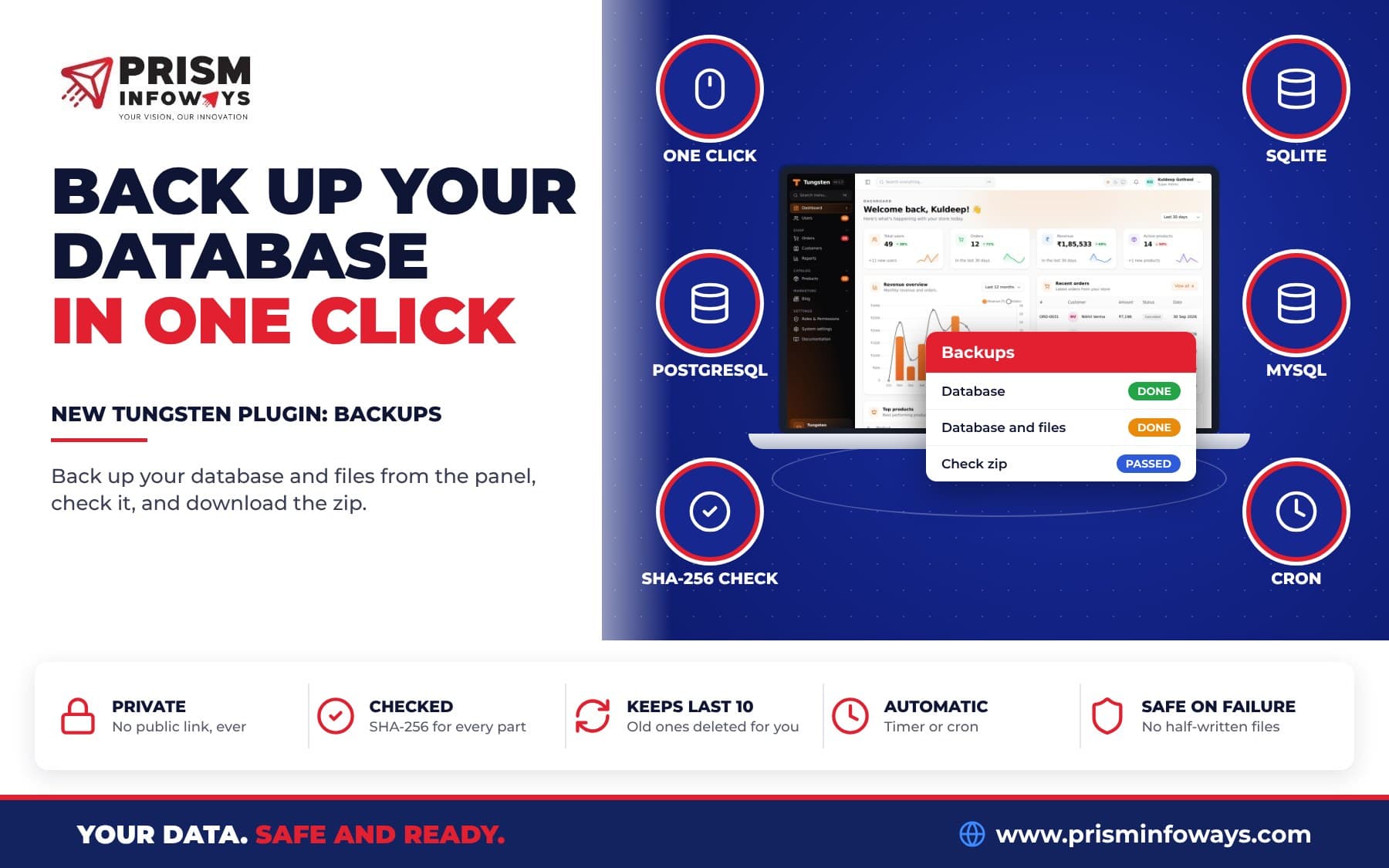
tungsten-backups lets you back up your SQLite, PostgreSQL or MySQL database and uploaded files from your Tungsten FastAPI admin panel and download a checked, private zip.
In short: tungsten-backups is a free plugin that adds database backups to your FastAPI admin panel. In your Tungsten panel you press Back up now, wait a moment, and press Download to get a zip. It works with SQLite, PostgreSQL and MySQL, can also save your uploaded files, keeps the zips in a private folder, and can run on a timer or from cron.
It is like Spatie Backup for Filament, made for Tungsten. See it on the Backups plugin page.
What is a database backup plugin for a FastAPI admin panel?
A backup is a copy of your data that you keep in case something goes wrong. A disk fails, or a bad import overwrites prices. With a recent backup, you can get your data back.
Many small teams know they should take backups, but nobody does it every day. Running pg_dump by hand needs a developer and a terminal. The Backups plugin puts this job inside the admin panel your team already uses. Here is what it does:
- Back up now: the database alone, or the database and uploaded files (images, documents).
- Works with your database: SQLite (an exact copy, safe while the app keeps writing), PostgreSQL (
pg_dump), MySQL / MariaDB (mysqldump). No dump tool installed, or another database? Every table is saved as JSON instead. - Runs in the background: the page doesn't wait. The list updates itself when the backup is ready.
- Download, Check, Delete: Check reads the whole zip back and compares every part with its SHA-256. (SHA-256 is a fingerprint of a file. If even one byte changes, the fingerprint changes.)
- Keeps the last 10 (you choose), deletes older ones, and never deletes the newest good one.
- Automatic backups every few hours while your app runs, or from cron.
- Safe on failure: a backup that fails (disk full, database down) leaves no half file. The error shows on its row and in the bell.
- Checks disk space first, and only one backup runs at a time, even with many workers.
- Dashboard card: when the last backup was made, how many you keep, and free disk space.
Who is this for?
- An online shop that takes a backup with the note "Before the price update", then imports new prices. If the import goes wrong, the old data is in the zip.
- A school on a small server with SQLite. A daily automatic backup keeps student and fee records safe.
- A clinic that stores reports and scans as uploaded files. A full backup saves the database and the files together.
- An agency that hosts panels for clients. A cron line backs up every client's panel at 2 AM.
- A SaaS team on PostgreSQL that wants to copy each backup off the server, for example to S3, with a few lines of code.
How do I install the Backups plugin in Tungsten?
If you are new to Tungsten, start with our guide to the Tungsten FastAPI admin panel. Then:
- Install the package from PyPI. It is tungsten-backups on PyPI.
pip install tungsten-backups - Add the plugin, create its table and mount the panel.
from tungsten_backups import BackupsPlugin panel.plugin(BackupsPlugin(folder="storage/backups")) panel.create_tables(engine) panel.mount(app) - Open the panel. You will find Backups under Settings, and a card on the dashboard.
- Press Back up now. Choose "Database" or "Database and files", add a note if you like, and wait for the row to say it is done. Then press Download.
It needs tungsten-admin 0.1.4 or newer.
How do I schedule automatic database backups?
There are two ways.
1. A timer inside your app
Set every_hours, for example 24 for a daily backup while the app runs:
from tungsten_backups import BackupsPlugin

panel.plugin(BackupsPlugin(folder="storage/backups", every_hours=24))
panel.create_tables(engine)
Use schedule_kind="full" to include uploaded files.
2. Cron, from the command line
Cron is the Linux tool that runs a command at set times. The plugin has a command for it:
python -m tungsten_backups myapp:panel            # back up the database
python -m tungsten_backups myapp:panel --full     # database and uploaded files
python -m tungsten_backups myapp:panel --list     # list backups
python -m tungsten_backups myapp:panel --verify   # check the newest backup
A daily cron line: 0 2 * * * cd /srv/app && .venv/bin/python -m tungsten_backups myapp:panel.
What options can I set?
All options, copied from the docs:
BackupsPlugin(
    folder="storage/backups",   # private folder for the zips (never inside a folder your web server serves)
    keep=10,                    # good backups to keep (0 keeps all)
    keep_days=0,                # also delete backups older than this (0: never)
    every_hours=None,           # e.g. 24 for a daily backup while the app runs
    schedule_kind="database",   # or "full" for automatic backups
    folders={},                 # more folders for full backups: {"invoices": "data/invoices"}
    include_storage=True,       # save the panel's upload folder in full backups
    use_tools=True,             # use pg_dump / mysqldump when installed
    timeout=3600,               # seconds a dump tool may run
    min_free_mb=100,            # don't start when the disk would drop below this
    max_age_days=7,             # warn when the newest backup is older
    allow=None,                 # fn(ctx) -> bool, an extra rule for who may use backups
    dashboard_widget=True,
)
Is it safe? Who can download my backups?
A backup holds all your data, so the plugin is strict:
- Zips are kept in a private folder on the server. There is never a public link. The plugin refuses a folder inside the panel's upload folder, because the panel serves that folder.
- With roles on, users need the backups.manage permission to see the screen and Download backups (
backups.download) to download. Super admins have both. - Without roles, every signed-in user is an admin, so use
allow=to narrow it:BackupsPlugin(allow=lambda ctx: ctx.user.email == "owner@example.com") - On a panel with no login, downloads are off. Turn them on with
allow_without_login=Trueonly on a panel that is already protected another way. - Every download and delete is written to the activity log when
activity_log=True.
What is inside the backup zip?
manifest.json          what is inside, row counts, versions, and a SHA-256 for every part
database.sqlite        SQLite copy (open it with any SQLite tool)
database.sql           pg_dump / mysqldump output
tables/<name>.jsonl    every row as JSON, one per line (when no dump tool was used)
files/storage/...      uploaded files (full backups)
How do I restore a backup?
Restoring is done outside the panel on purpose, so a wrong click can't wipe your data. Stop the app first, then:
- SQLite: unzip and put
database.sqlitein place of your database file. - PostgreSQL:
psql -d mydb -f database.sqlon an empty database. - MySQL:
mysql mydb < database.sql. - Files: copy
files/storage/back into your upload folder.
Backups plugin vs doing it by hand
| Task | By hand (pg_dump, scripts) | tungsten-backups |
|---|---|---|
| Make a backup | Developer runs a command on the server | Back up now button in the panel |
| Download it | Copy the file off the server yourself | Download button, admins only |
| Include uploaded files | Write your own script | Choose "Database and files" |
| Check the file is good | Usually skipped | Check button compares SHA-256 |
| Delete old backups | Your own cleanup script | Keeps the last 10 (you choose) |
| Failed backup | May leave a half file | No half file, error in the bell |
| Restore | psql / mysql / copy file | Same: done outside the panel on purpose |
Does it work with other Tungsten plugins?
- Security audit: with
tungsten-security-audit, the audit gets a "Recent backup" check. It warns when there is no backup yet or the newest one is old. Read about the Security audit plugin. - Quick Create: with the Quick Create plugin, the "+ New" menu gets a Backup link that opens the Backups screen.
- Environment indicator: the Environment indicator plugin shows a red Live badge, a good reminder to back up before big changes on live data.
- Media library: the Media library plugin keeps files in the panel's storage, and full backups save the panel's upload folder when
include_storage=True.
From your own code you can start a backup, or copy each new backup off the server:
backups = panel.get_plugin("backups")
backup = backups.backup("full", note="Before the import")   # waits and returns the row

@backups.on_backup
def copy_off_server(backup, plugin):
    if backup.status == "done":
        upload_to_s3(plugin.folder / backup.name)
Here upload_to_s3 is your own function. The plugin itself does not upload to S3 or any cloud.
Tips and limits to know
- Keep a copy off the server. Backups are saved on the same server as your app. If that server dies, they go with it. Download them, or use
on_backupto copy them somewhere else. - Install the dump tools. For PostgreSQL and MySQL, install
pg_dumpormysqldumpon the server. Without them you still get every table as JSON, but a.sqlfile is easier to restore. - No restore button. This is on purpose. Practise a restore once on a test copy.
- It is light. Big tables are read in batches. A 600 MB database used about 70 MB of memory.
Key facts
- Package:
tungsten-backups(importtungsten_backups) - Version: 0.1.0
- Needs:
tungsten-admin0.1.4 or newer, Python 3.10 or newer - License: MIT, free and open source
- Databases: SQLite, PostgreSQL, MySQL / MariaDB, or JSON for any other
- Where: Settings, Backups, plus a dashboard card
Get started
Install it with pip install tungsten-backups and press Back up now. Read the full Backups docs, see the plugin page, check the Tungsten changelog, or browse all Tungsten plugins. The code is on GitHub.
Need backups, hosting and a safe admin panel set up for you? Talk to us if you want it built around your business.
More new Tungsten plugins
This plugin is part of a new batch of free Tungsten plugins. Each one installs with pip and works with the others:
- Quick Create: add any record from any page.
- Kanban boards: drag and drop records between columns.
- Custom dashboards: build your own dashboard with widgets.
- Calendar: meetings, leave and due dates in one view.
- Tags: colored tags and tag filters on any record.
- Saved views: one-click saved filters for every table.
- Media library: upload a file once and reuse it anywhere.
- Impersonate: log in as a user to see what they see.
- Environment indicator: know if you are on Local, Staging or Live.
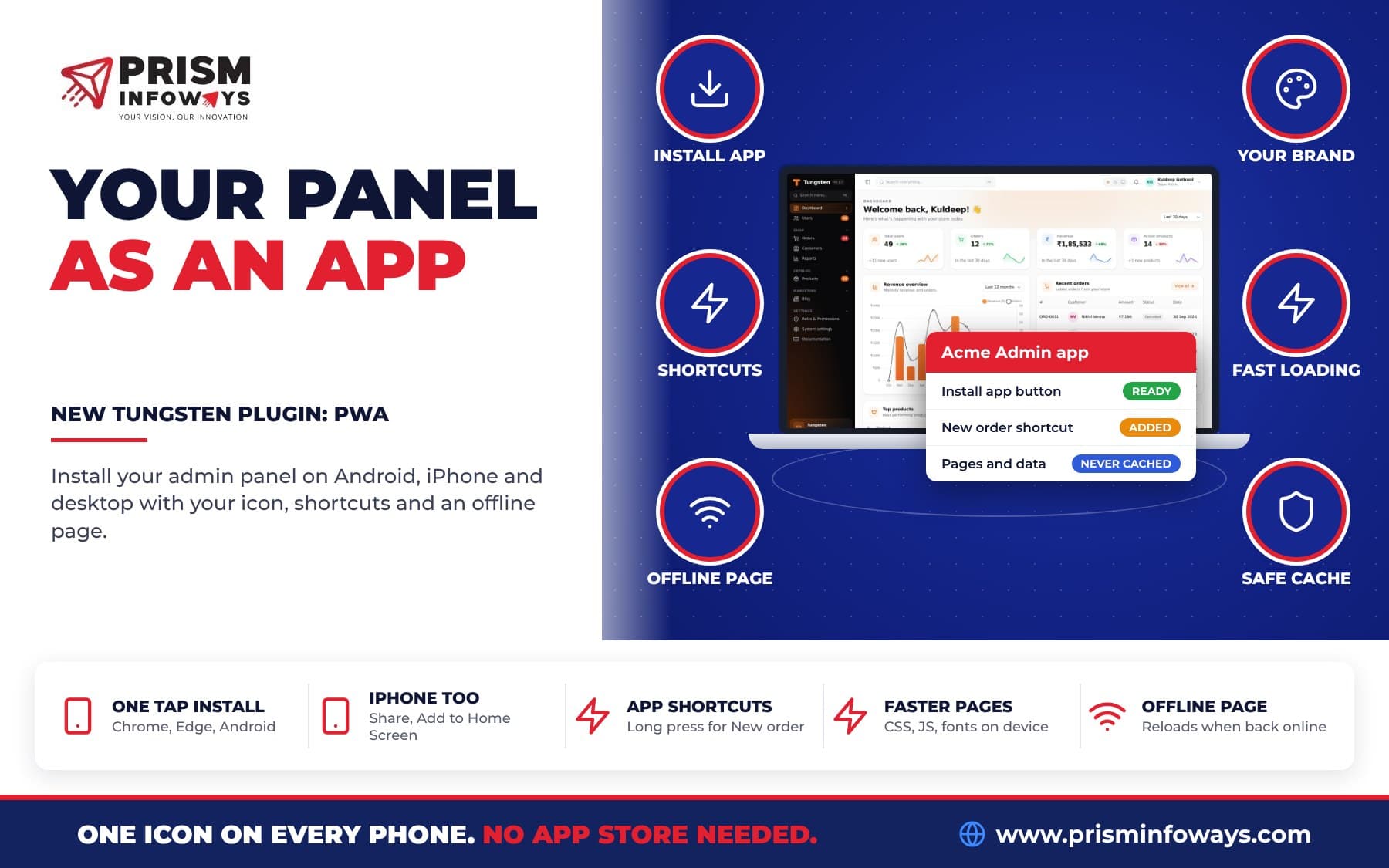
- Install as an app (PWA): put your admin panel on the phone home screen.
Frequently asked questions
How do I back up my database from a FastAPI admin panel?
Install tungsten-backups, add BackupsPlugin(folder="storage/backups") to your Tungsten panel and create its table. Then open Settings, Backups, press Back up now and download the zip.
Which databases does tungsten-backups work with?
SQLite, PostgreSQL (with pg_dump) and MySQL or MariaDB (with mysqldump). Without a dump tool, or with another database, every table is saved as JSON lines instead.
Can anyone download my backups?
No. Backups are saved in a private folder, and only signed-in admins with the download permission can download them through the panel. There is never a public link.
Can I restore a backup from the Tungsten panel?
No, on purpose, so a wrong click can't wipe your data. Stop the app and put the SQLite file back, or load database.sql with psql or mysql.
How do I schedule daily backups?
Set every_hours=24 on the plugin for a backup while the app runs, or add a cron line that runs python -m tungsten_backups myapp:panel.
What happens if a backup fails?
Nothing is left half written. The row shows the error, the person who started it gets a bell notification, and the next backup can run straight away.
Is tungsten-backups free?
Yes. It is free and open source under the MIT license. Version 0.1.0 needs tungsten-admin 0.1.4 or newer.
Need Expert IT Solutions?
Ready to transform your business? Team up with Prism Infoways and harness cutting-edge technology for your growth.
Contact Us