tungsten-media-library keeps every image and file of your FastAPI admin panel in one place. Upload once, add alt text, see where a file is used and pick it again from any file field.
In short: tungsten-media-library is a free, open-source plugin that adds a media library to your FastAPI admin panel built with Tungsten. Every image and file of the panel lives in one place: upload once, add alt text, see where each file is used, and pick it again from any file field with a Choose from library button. It works like Curator for Filament, but for Python.
Without one, the same logo gets stored five times and deleting a file can break a page. The Media library plugin for Tungsten fixes this inside your own app and your own storage.
What is a media library in a FastAPI admin panel?
Tungsten is an admin panel for FastAPI and SQLAlchemy: the private back office where your team adds, edits and checks data. If you are new to it, read our introduction to the Tungsten FastAPI admin panel.
A media library is one screen that holds all your images, PDFs, videos and audio files. Instead of uploading a file again and again, you upload it once and reuse it. The tungsten-media-library plugin adds:
- A Media library screen under a Content menu.
- A Choose from library button under every file field of the panel.
What can the media library plugin do?
The library screen
- Upload files adds many files at once (up to 20, 20 MB each by default). Pick a folder to keep them tidy.
- Tabs: All, Images, Documents, Videos, Audio, Other.
- Search by file name, title or alt text. Filters: folder, missing files, has alt text.
- Open a file to see a big preview, its link, a ready Markdown line to paste into a post, and Used in.
- Edit the name, title, alt text, caption, folder and tags. (Alt text is a short description of an image. Screen readers and search engines read it.)
- Bulk actions: move to a folder, or delete.
- Check files finds entries whose file was deleted from the disk. They show in red and can't be picked.
Choose from library, under every file field
This is the heart of the plugin. Every file field in the panel gets a Choose from library button. It opens a grid of your files with search. Click a file and the field takes it. No second copy is uploaded.
- An image field (like a blog cover) shows only images. A field that takes
.pdfshows only PDFs. - Files that are missing from storage are not shown.
- The button only shows to users who may see the library (
media.view_anywhen roles are on).
Everything in one place
Files uploaded through any file field of the panel join the library by themselves, with their real name, type, size and pixel size. For example, a blog cover uploaded on a post shows up in the library under the blog folder.
Some folders stay private and are not added: tickets (customer attachments), hr (employee documents) and imports. You can still attach a library file to a ticket or an employee.
Same file twice is stored once
When someone uploads a file the library already has (same content), the panel keeps the copy it has and deletes the new one. It checks the content, not the name.
Safe delete and "Used in"
Every file shows Used in: each blog post, ticket or employee that uses it. A file that is still in use can't be deleted. The library tells you where it is used, so you can remove it there first. Bulk delete skips files in use and names them. Deleting a file also removes it from storage.
Who is this media library plugin for?
- Online shop: keep product photos in one place and count your own product image columns in "Used in" with
track. - Agency or content team: blog covers, social images and author photos, with alt text for SEO, picked from the library.
- SaaS or support team: attach the same manual or price list to many help desk replies without uploading it again.
- School, clinic or office: keep policies and letters in the library and attach them to employees with the HR plugin, while private employee documents stay out of it.
How do I install the media library in a FastAPI admin panel?
You need a Tungsten panel with tungsten-admin 0.1.8 or newer.
-
Install the package from tungsten-media-library on PyPI:
pip install tungsten-media-library -
Set the panel's storage, add the plugin and create its tables:
from tungsten import LocalStorage from tungsten_media_library import MediaLibraryPlugin panel = Panel(..., storage=LocalStorage("storage", public=True)) # public=True: images show on your website panel.plugin(MediaLibraryPlugin()) panel.create_tables(engine) -
Decide on
public=True. Use it only when the files are meant for a public site (blog images, product photos). Without it, files open only for signed-in users. -
Start your app. Open Content → Media library, upload a few files, then open any form with a file field and press Choose from library.
How does the media library work with other Tungsten plugins?
None of these is needed, but when installed they connect:
| Plugin | What you get |
|---|---|
| Blog | Covers, social images and author photos from the library. Posts that use a file show in Used in. Copy the Markdown line into a post. |
| Help desk | Attach library files (manuals, price lists) to replies and notes. Ticket attachments stay out of the library. |
| HR | Attach library files (policies, letters) to employees. Employee documents stay out of the library. |
| Tags | Library tags become shared, colored tags with a tag filter. |
| Quick create | An Upload files entry in the + New menu. |
| PWA | A Media library shortcut on the installed app's icon. |
Read more in our posts on the help desk and blog plugins, the Tags plugin for colored, shared tags, the Quick Create plugin and its + New menu, and the plugin to install your admin panel as an app.
Plain file fields vs the media library
| Plain file fields | With tungsten-media-library | |
|---|---|---|
| Reuse a file in another form | Upload it again | Choose from library, no new copy |
| Same file uploaded twice | Two copies on disk | One copy kept |
| Where is this file used? | Hard to tell | "Used in" list |
| Delete a file still in use | Possible by mistake | Blocked, with where it is used |
| Alt text and captions | Per field, if you build it | Stored once per file |
| Files missing from disk | Found when a page breaks | Check files shows them in red |
Which options can I change?
MediaLibraryPlugin(
    capture_uploads=True,      # add files uploaded anywhere in the panel
    picker=True,               # "Choose from library" on every file field
    dedupe=True,               # same file twice: keep one copy
    private_directories=("imports", "tickets", "hr"),
    directory="media",         # where the library's own uploads go
    max_size=20480,            # kilobytes per file
    max_files=20,              # files per upload
    accepted_file_types=None,  # e.g. ["image/*", ".pdf"]
    protect_used=True,         # don't delete files in use
    navigation_group="Content",
    per_page=24,               # files per page in the picker
)
How do I connect my own tables to the media library?
If your own models hold file paths (like a product image), tell the library about them. Then "Used in" and safe delete cover them too:
media = panel.get_plugin("media")

media.on_media_added("tags", lambda db, item: ...)       # a file joined the library
media.on_media_deleted("cdn", lambda db, item: ...)      # a file was deleted

# your own table holds file paths: count it in "Used in" and safe delete
media.track("products", Product, "image", "gallery", label="Product")

# or answer yourself
media.add_usage_finder("pages", lambda db, item: [{"label": "Page", "title": "Home", "url": "/admin/pages/1"}])

media.url(path)               # link to a file
media.alt_for(db, path)       # its alt text, for your public pages
media.add_file(db, path, name="Logo.png", folder="brand")   # add a file you stored yourself
track reads a text column as one path, and a JSON or long text column as "mentions the path". alt_for is handy for SEO: your public pages can print the same alt text your team wrote in the panel.
Tips and limits to know
- Think before
public=True. Use it only for files meant for a public website. - Write alt text when you upload. The "has alt text" filter shows which images still need it.
- "Used in" knows only what it is told. It covers Blog, Help desk and HR. For your own tables, use
trackoradd_usage_finder. - It needs tungsten-admin 0.1.8 or newer, because it uses new core hooks for uploads and file picking.
Key facts
- Package:
tungsten-media-library(importtungsten_media_library, classMediaLibraryPlugin) - Version: 0.1.0
- Needs:
tungsten-admin0.1.8 or newer, Python 3.10+ - License: MIT, free and open source
- Main features: Choose from library on every file field, Used in, safe delete, no duplicates, alt text, folders, tags
- Works with: Blog, Help desk, HR, Tags, Quick Create and PWA (all optional)
Get started
See the Media library plugin page, read the full media library docs, and check the Tungsten changelog for new releases. Browse all Tungsten plugins, or read the code on GitHub.
Want a content system, shop back office or document store made for your team? Talk to us if you want it built around your business.
More new Tungsten plugins
This plugin is part of a new batch of free Tungsten plugins. Each one installs with pip and works with the others:
- Quick Create: add any record from any page.
- Kanban boards: drag and drop records between columns.
- Custom dashboards: build your own dashboard with widgets.
- Calendar: meetings, leave and due dates in one view.
- Tags: colored tags and tag filters on any record.
- Saved views: one-click saved filters for every table.
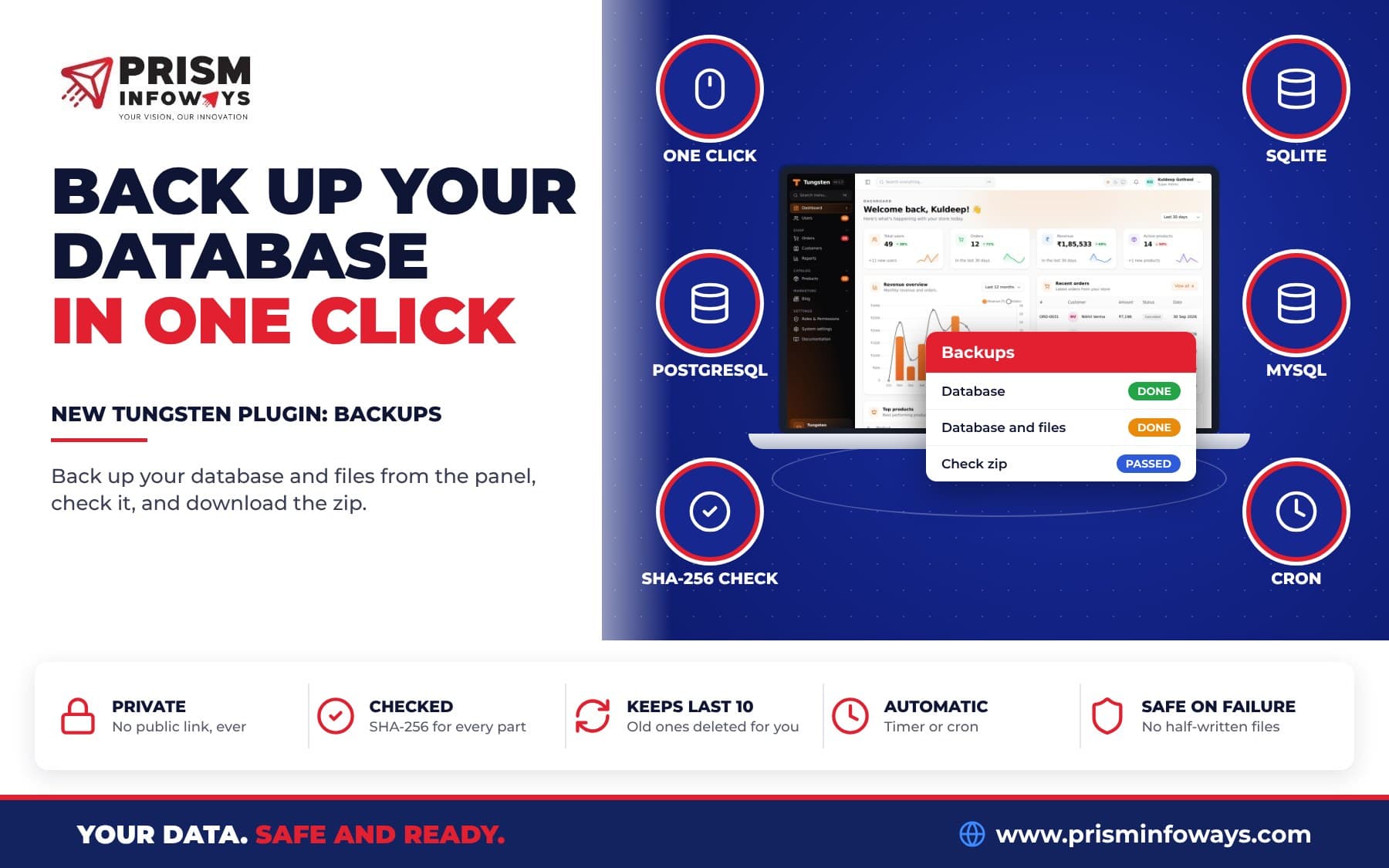
- Database backups: back up your database in one click.
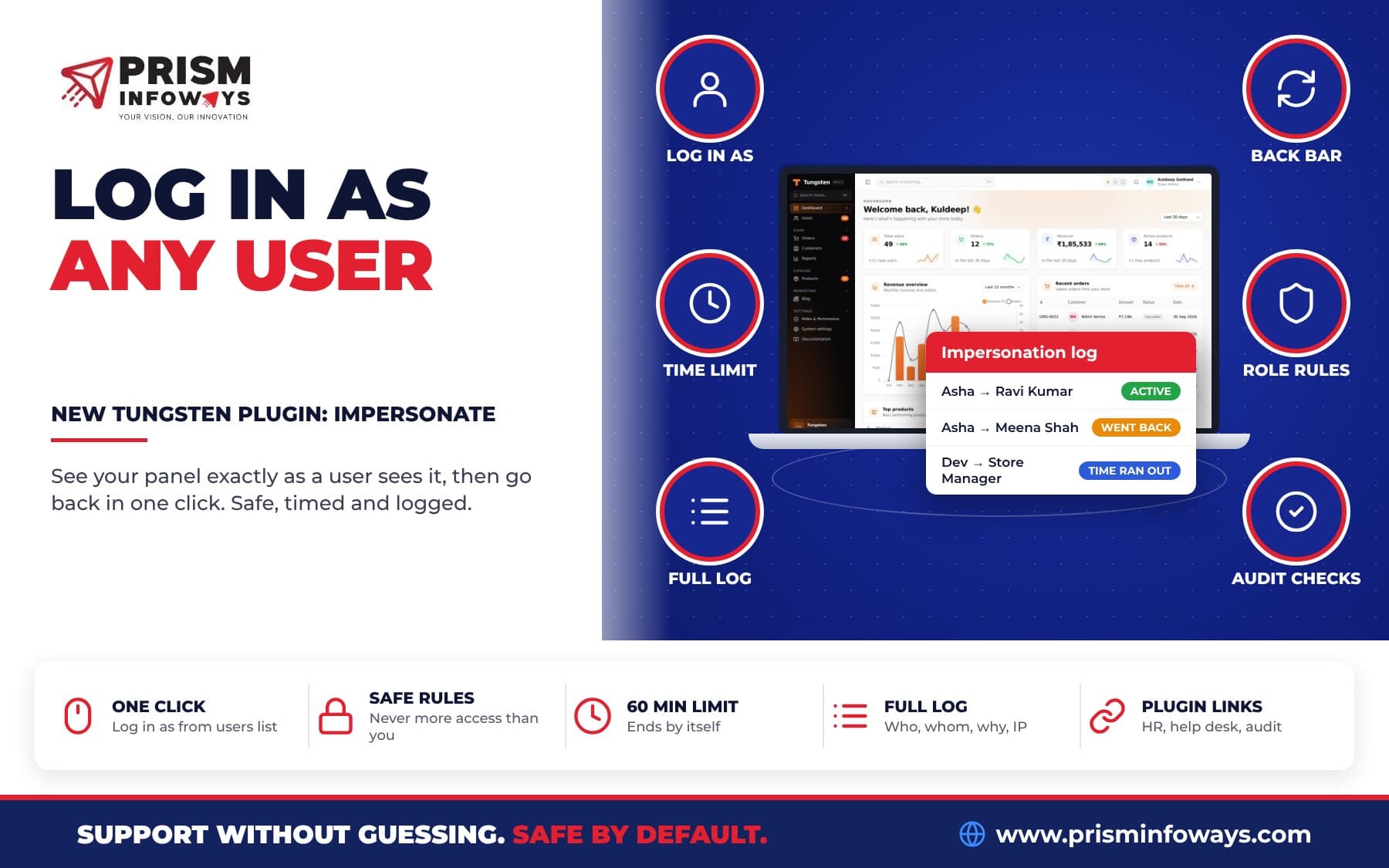
- Impersonate: log in as a user to see what they see.
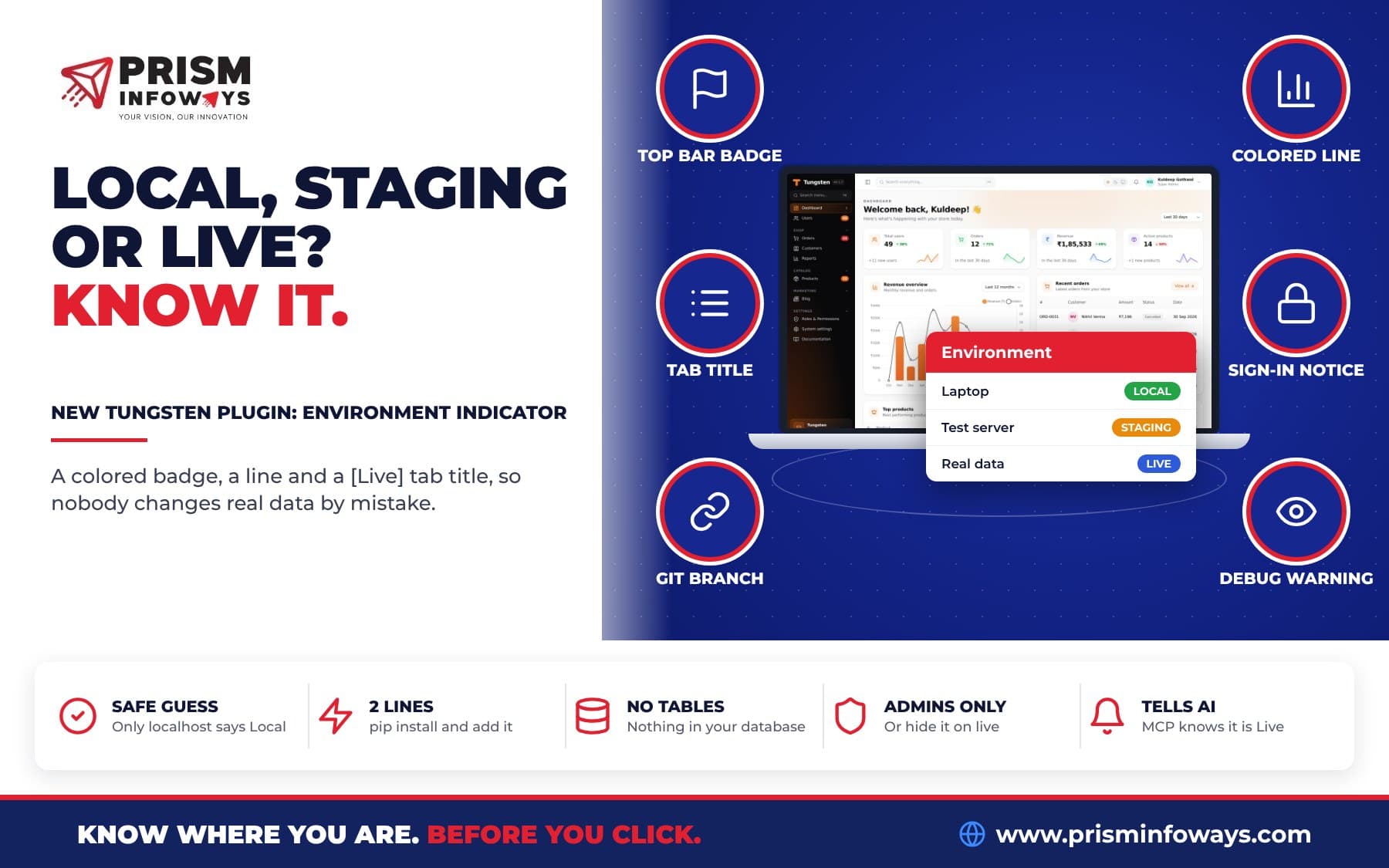
- Environment indicator: know if you are on Local, Staging or Live.
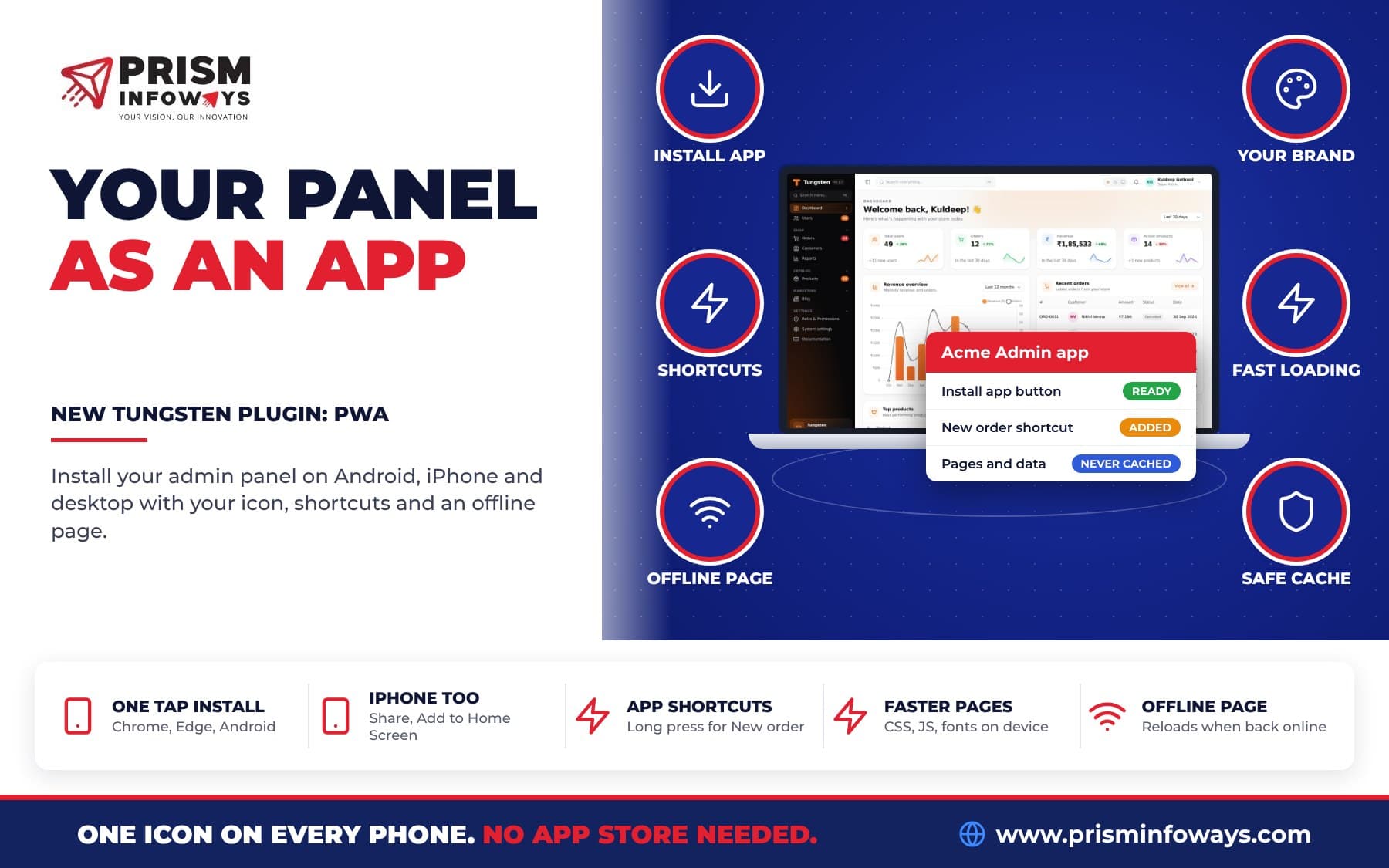
- Install as an app (PWA): put your admin panel on the phone home screen.
Frequently asked questions
How do I add a media library to a FastAPI admin panel?
Install the free tungsten-media-library plugin with pip install tungsten-media-library, then add panel.plugin(MediaLibraryPlugin()) and panel.create_tables(engine) to your Tungsten panel. A Media library screen appears under Content, and every file field gets a Choose from library button.
Is there a Curator-like media manager for Python admin panels?
Yes. tungsten-media-library works like Curator for Filament, but for the Tungsten admin panel on FastAPI. It keeps every image and file in one place with folders, tags, alt text and a picker on every file field.
Does the media library copy a file every time I reuse it?
No. In tungsten-media-library, picking a file from the library points the field to the same stored file. Nothing is uploaded again, and the same file uploaded twice is stored once.
Can I delete an image that a blog post still uses?
Not by mistake. tungsten-media-library shows every blog post, ticket or employee that uses a file and blocks the delete until you remove it there first. You can turn this off with protect_used=False.
Are ticket attachments and HR documents shown in the media library?
No. Files in the tickets, hr and imports folders stay private and never join the tungsten-media-library library. You can still attach library files to tickets and employees.
Why don't my media library images show on my public website?
Set storage=LocalStorage("storage", public=True) on your Tungsten Panel. Without public=True, files open only for signed-in users of the panel.
Is tungsten-media-library free?
Yes. tungsten-media-library is free and open source under the MIT license. It needs tungsten-admin 0.1.8 or newer and Python 3.10 or newer.
Need Expert IT Solutions?
Ready to transform your business? Team up with Prism Infoways and harness cutting-edge technology for your growth.
Contact Us