tungsten-pwa turns your Tungsten FastAPI admin panel into a Progressive Web App that your team installs on Android, iPhone, Windows and Mac, with your icon, shortcuts, faster loading and an offline page.
In short: tungsten-pwa is a free plugin that turns your Tungsten FastAPI admin panel into a Progressive Web App (PWA). Your team can install the admin panel like an app on Android, iPhone, Windows, Mac and Linux. It opens in its own window with your name and icon, loads faster, and shows a clean offline page when the internet is down, while pages and data are never cached.
Your staff already use the admin panel every day: to check orders, add customers or approve leave. On a phone, that means opening a browser, typing the address and finding the tab again. With the PWA plugin for Tungsten, they tap one icon on their home screen instead. You add it with two lines of Python.
What is a PWA (Progressive Web App)?
A Progressive Web App is a website that can be installed like an app. It gets an icon on the phone or computer, opens in its own window without the browser's address bar, and can show a page even when there is no internet.
Two small files make this work:
- A web app manifest: a small file that tells the browser the app's name, icon, color and start page.
- A service worker: a small script that the browser keeps running in the background. It decides which files to save on the device and what to show when the network fails.
Writing both by hand for an admin panel is tricky. Cache the wrong thing and a user may see old data, or worse, another person's data. tungsten-pwa writes both files for you, with safe rules built in.
What does the PWA plugin add to your admin panel?
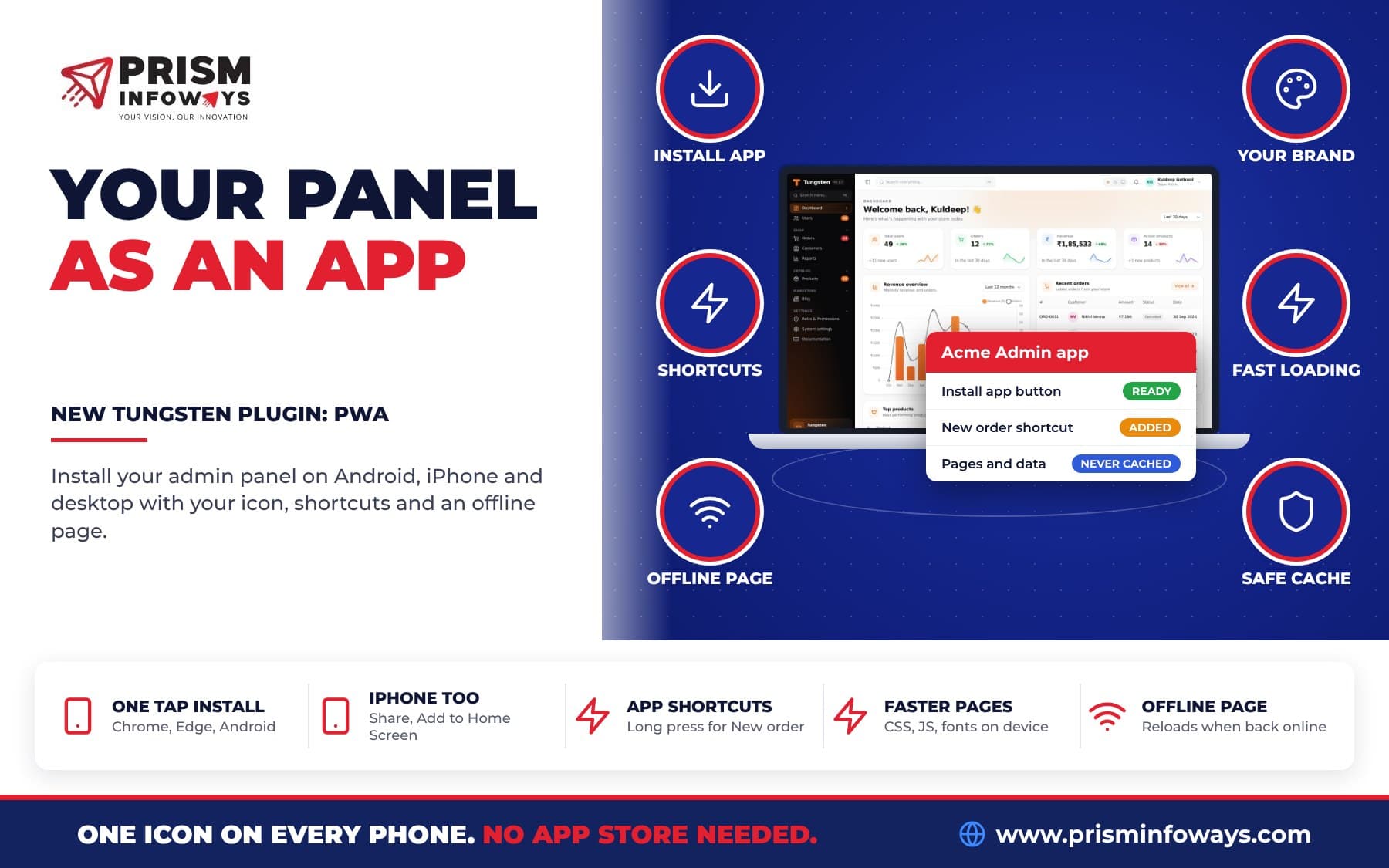
- Install app button in the top bar in Chrome, Edge, Samsung Internet and on Android. On iPhone and iPad: Share, then Add to Home Screen.
- Your brand: app name, theme color (taken from your primary color) and icons. Tungsten icons are built in, or you pass your own.
- App shortcuts: a long press on the app icon (or a right click on a computer) opens pages like New order directly.
- Faster loading: CSS, JavaScript, fonts and images are kept on the device.
- Offline page instead of the browser's error page. It reloads by itself when the internet is back.
- Offline bar at the bottom of the panel while the device is offline.
- Safe by design: pages and data are never cached. Login, logout, CSRF protection and permissions work exactly as before.
It works with the SPA mode, many panels on one site, panels at / or at a path, and every other plugin's pages.
Who is this for?
- Shops and delivery teams: staff on the floor or on the road open the orders list from a home screen icon. A long press on the icon gives New order straight away.
- Clinics: the front desk keeps the panel open in its own window on a tablet, without browser tabs getting in the way.
- Schools and coaching centres: teachers install the panel on their phones to check classes and attendance between lessons.
- Field sales and service: when the signal drops, they see a clear "You are offline" page instead of a confusing browser error.
- SaaS and agencies: give each client's team an app with the client's own name, icon and color, without building a separate mobile app.
How do I install the PWA plugin?
- Install the package from tungsten-pwa on PyPI:
pip install tungsten-pwa - Add the plugin to your panel:
from tungsten_pwa import PWAPlugin panel.plugin(PWAPlugin()) - Make sure your site uses https. Service workers need it. While you develop,
http://localhostandhttp://127.0.0.1work too. - Open the panel in Chrome or Edge and press Install app in the top bar. On iPhone, open it in Safari, tap Share, then Add to Home Screen.
That's it. No new tables and no build step.
How do I set the app name, colors and icons?
By default the app uses your panel's brand_name, brand_tagline and primary color. To change them, pass options:
PWAPlugin(
    name="Acme Admin",                 # default: the panel's brand_name
    short_name="Acme",                 # name under the icon on a phone
    description="Orders on the go",    # default: the panel's brand_tagline
    theme_color="#4f46e5",             # default: your primary color
    background_color="#ffffff",        # splash screen color
    display="standalone",              # or "fullscreen", "minimal-ui", "browser"
    start_path="orders",               # the page the app opens on (default: the dashboard)
    shortcuts=[("New order", "orders/create"), ("Customers", "customers")],
    install_button=True,
    offline_banner=True,
    offline_title="You are offline",
    offline_text="Check your internet connection. This page opens again by itself when you are back online.",
)
Use your own logo as the app icon
Pass PNG icons of at least 192 and 512 pixels. A maskable icon has its logo in the middle 80%, so Android can cut it into a circle or a rounded square.
PWAPlugin(
    icons=[
        {"src": "/static/icon-192.png", "sizes": "192x192", "type": "image/png"},
        {"src": "/static/icon-512.png", "sizes": "512x512", "type": "image/png"},
        {"src": "/static/icon-maskable.png", "sizes": "512x512", "type": "image/png", "purpose": "maskable"},
    ],
    apple_touch_icon="/static/apple-touch-icon.png",   # 180x180, for iPhone and iPad
)
How do app shortcuts work?
Shortcuts are the small menu you get when you long press an app icon. You set them with shortcuts=, and other plugins can add their own.
With the Quick Create plugin (tungsten-quick-create) installed, the app gets New ... shortcuts for your first resources by itself. Any plugin can add shortcuts with a pwa_shortcuts method:
class OrdersPlugin(Plugin):
    id = "orders"

    def pwa_shortcuts(self, panel):
        return [("New order", "orders/create"), {"name": "Today's orders", "url": "orders?tab=today"}]
Or add one from your own code:
panel.get_plugin("pwa").add_shortcut("New invoice", "invoices/create")A URL is a panel path such as "orders/create" or a full path such as "/admin/orders". Shortcuts with the same URL are shown once. A plugin whose pwa_shortcuts fails is skipped and logged, so it never breaks the app.
How does the caching work, and is it safe?
This is the most important part for an admin panel. The service worker follows these rules:
| Request | What happens |
|---|---|
| A page | Always from your server. If the network fails, the offline page. |
Tungsten CSS and JavaScript (with a ?v= hash) | From the device first. These files never change. |
| Other images, fonts and plugin files | From the device, refreshed in the background. |
| Form posts, HTMX requests, exports, APIs | Not touched. |
Because pages and data always come from your server, nobody sees old data or another person's data. Nothing personal is stored, so there is nothing to clear on logout. When you upgrade Tungsten or change the plugin settings, the app gets a new version, and browsers install it by themselves and delete the old files. Each panel keeps its own files, so /admin and /portal never mix.
The plugin adds three addresses under your panel path: /_tw/pwa/manifest.webmanifest, /_tw/pwa/sw.js and /_tw/pwa/offline. They work without login and never show any user's data.
PWA vs a native mobile app vs a plain browser tab
| Browser tab | Native app | tungsten-pwa | |
|---|---|---|---|
| Icon on home screen | No | Yes | Yes |
| Own window, no address bar | No | Yes | Yes |
| Needs app store publishing | No | Yes | No |
| Separate code to build and keep updated | No | Yes | No, same panel |
| Clean offline page | No | Depends | Yes |
| Work on data with no internet | No | Depends | No, by design |
Limits to know
- No offline data entry. People can open the app and see the offline page, but pages and data need the internet. This is on purpose: it keeps data safe on shared and lost phones.
- https is required on a live site. Browsers only allow installing apps over https.
- No install button on iPhone. iPhone users use Share, then Add to Home Screen. The button shows only in browsers that support installing, and hides once the app is installed.
- Removing it needs one extra deploy. Taking the plugin out leaves the old service worker in browsers. Deploy once with
PWAPlugin(uninstall=True); each browser removes the worker and its files on the next visit. After a few weeks you can take the plugin out.
Tips and good practice
- Keep
short_nameshort. It is the name under the icon on a phone. - Set
start_pathto the page your team opens most, like"orders". - Add two or three shortcuts for daily jobs. Too many makes the menu hard to use.
- Pair it with the calendar plugin or the kanban board plugin, so your team checks their day from the home screen.
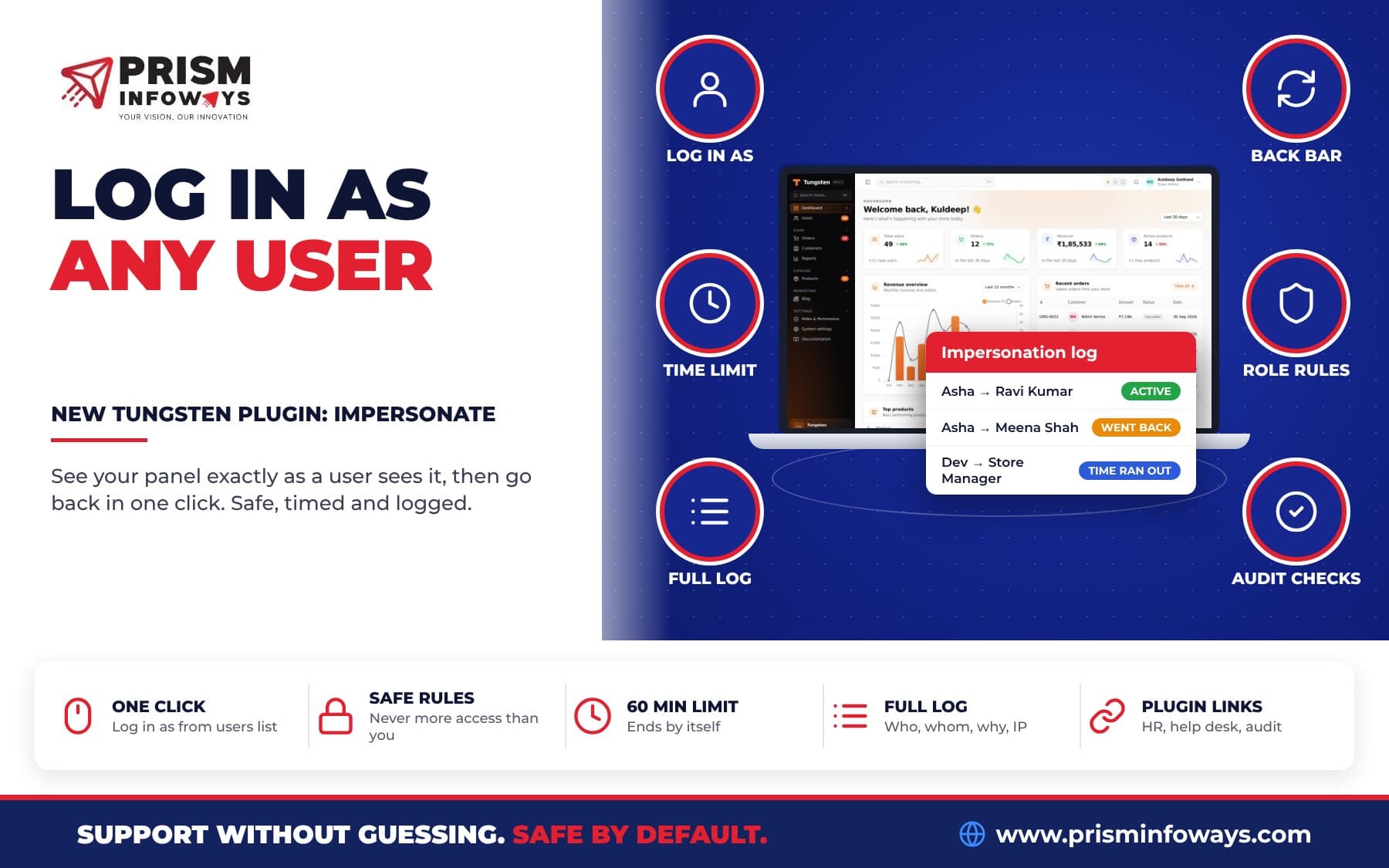
- Support teams can also use the impersonate plugin to see what a user sees in the installed app.
Key facts
- Package:
tungsten-pwa(classPWAPlugin) - Version: 0.1.0
- Needs:
tungsten-admin0.1.5 or newer, Python 3.10 or newer, and https on a live site - License: MIT, free and open source
- Works on: Android, iPhone, iPad, Windows, Mac and Linux
- Caches: only CSS, JavaScript, fonts and images; never pages or data
- Source: Tungsten on GitHub
Get started
Read the PWA plugin page and the full PWA docs. See what is new in the Tungsten changelog and browse all Tungsten plugins. New to Tungsten? Start with our introduction to the Tungsten admin panel for FastAPI.
Want your admin panel as an app on every phone in your team, with your own brand? Talk to us if you want it built around your business.
More new Tungsten plugins
This plugin is part of a new batch of free Tungsten plugins. Each one installs with pip and works with the others:
- Quick Create: add any record from any page.
- Kanban boards: drag and drop records between columns.
- Custom dashboards: build your own dashboard with widgets.
- Calendar: meetings, leave and due dates in one view.
- Tags: colored tags and tag filters on any record.
- Saved views: one-click saved filters for every table.
- Media library: upload a file once and reuse it anywhere.
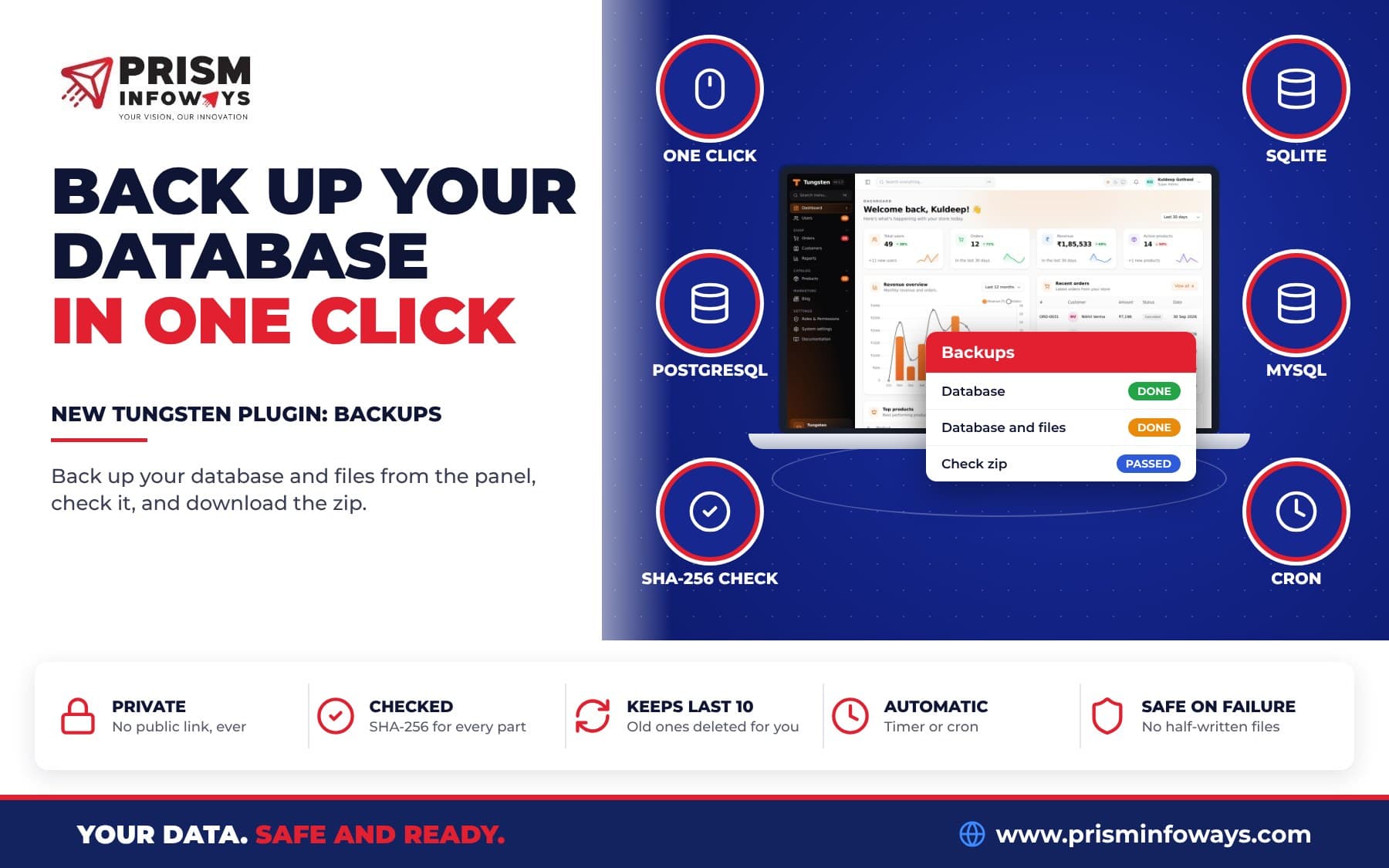
- Database backups: back up your database in one click.
- Impersonate: log in as a user to see what they see.
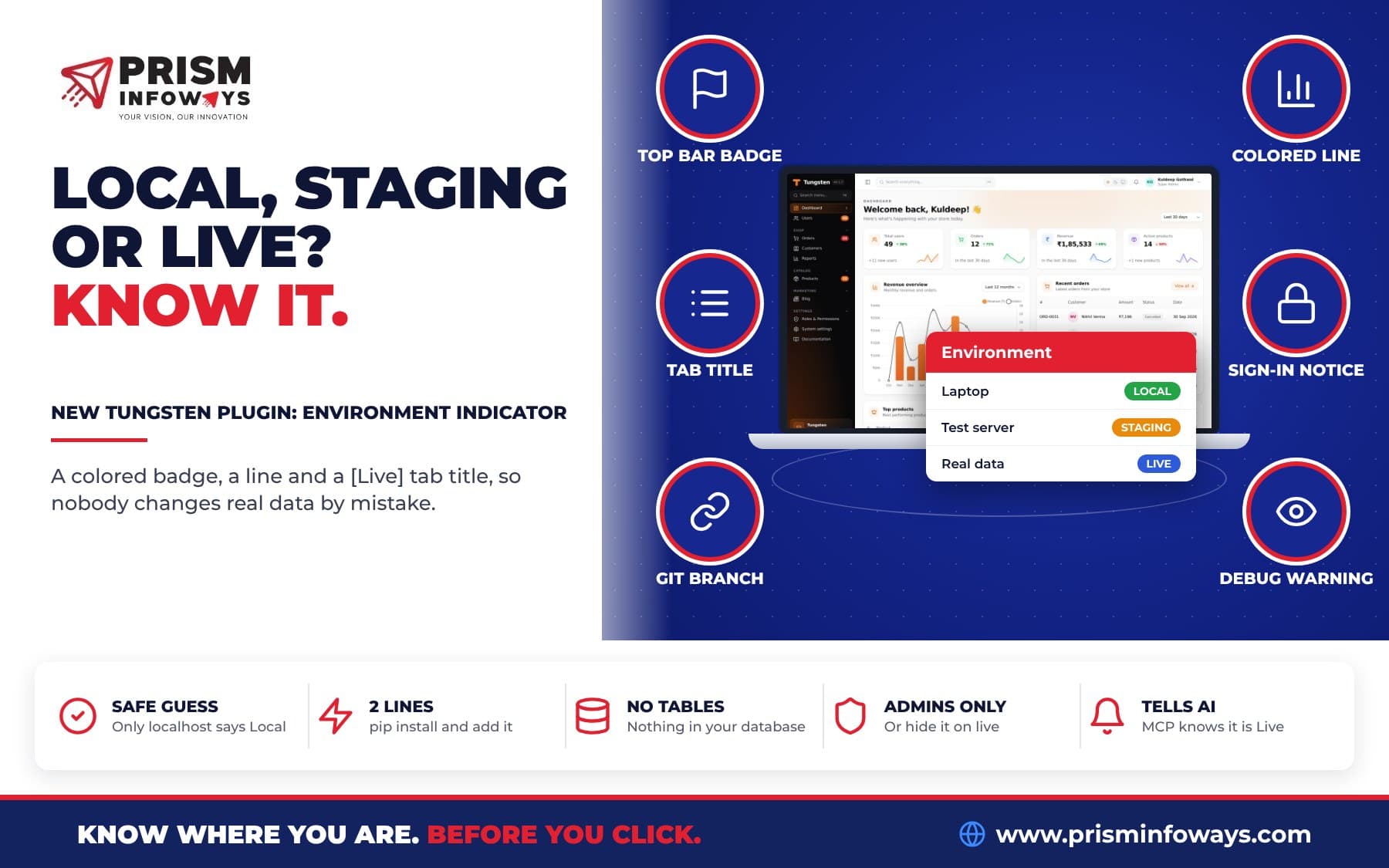
- Environment indicator: know if you are on Local, Staging or Live.
Frequently asked questions
How do I make my FastAPI admin panel installable as an app?
Install tungsten-pwa with pip and add panel.plugin(PWAPlugin()) to your Tungsten panel. Your site must use https. Your team then sees an Install app button, or uses Add to Home Screen on iPhone.
Does the Tungsten PWA plugin work on iPhone?
Yes. Open the Tungsten panel in Safari, tap Share, then Add to Home Screen. It then opens like an app. iPhone has no install button.
Can people use the admin panel with no internet?
They see a clean offline page that reloads by itself when the internet is back. tungsten-pwa never stores pages or data on the device, which keeps data safe on shared or lost phones.
Does my site need https for a PWA?
Yes. Browsers only allow installing apps over https. On your own computer, localhost and 127.0.0.1 work too while you develop with tungsten-pwa.
Is it safe to use a service worker on an admin panel?
With tungsten-pwa, yes. Pages and data are never cached, so login, logout, CSRF and permissions work as before. Only CSS, JavaScript, fonts and images are kept on the device.
How do I remove the PWA plugin later?
Deploy once with PWAPlugin(uninstall=True). Each browser removes the tungsten-pwa service worker and its files on its next visit. After a few weeks you can take the plugin out.
Is tungsten-pwa free?
Yes. tungsten-pwa is free and open source under the MIT license, like Tungsten itself. It needs tungsten-admin 0.1.5 or newer.
Need Expert IT Solutions?
Ready to transform your business? Team up with Prism Infoways and harness cutting-edge technology for your growth.
Contact Us