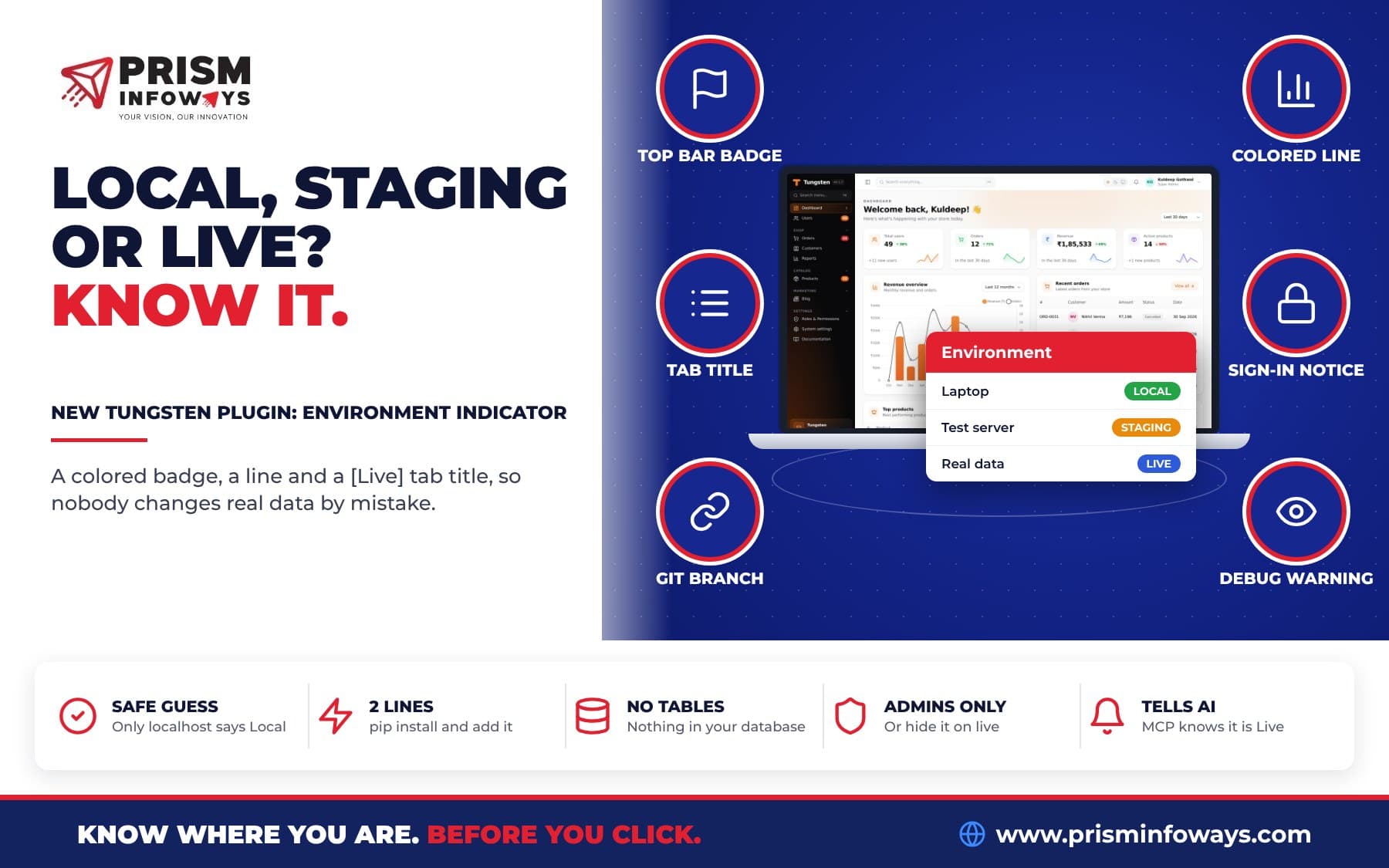
tungsten-environment-indicator adds a green Local, amber Staging or red Live badge, a colored line and a [Live] tab title to your Tungsten FastAPI admin panel, so nobody changes live data by mistake.
In short: tungsten-environment-indicator is a free plugin that adds a Local, Staging or Live badge to your Tungsten FastAPI admin panel. It shows a green Local, amber Staging or red Live badge in the top bar, a thin colored line on top of every page, and [Live] in the browser tab title. So nobody edits or deletes real data because they thought they were on their laptop.
This is the environment indicator for your FastAPI admin panel. It takes two lines of code and adds no database tables. You can see it on the Environment indicator plugin page.
What is an environment indicator for a FastAPI admin panel?
Most apps run in more than one place. An environment is one copy of your app. You have a copy on your own computer (Local), maybe a test copy for the team (Staging), and the real copy your customers use (Live, also called production).
All these copies look the same. That is the problem. Someone opens five tabs, thinks they are on Staging, and deletes a "test" order. But it was Live.
An environment indicator is a loud label that tells you where you are. The Tungsten plugin shows it in four places:
- A colored badge in the top bar: green Local, blue Development, amber Staging, red Live.
- A thin colored line on top of every page, the sign-in page too.
- The browser tab title starts with
[Live]or[Staging], like[Live] Orders · Acme. So you can tell tabs apart. - The sign-in page says "You are signing in to Live" before anyone types a password.
Who is this for?
Anyone who has more than one copy of the same admin panel. Some real examples:
- An online shop with a staging copy for testing new prices. The team sees an amber Staging badge while testing, and a red Live badge when they work on real orders.
- A school that tests a new fee module on a copy of the data first.
- A clinic where a developer fixes a bug on a laptop while the front desk uses the live panel.
- An agency that runs panels for many clients. Each client has Local, Staging and Live, and the git branch in the badge shows which code is running.
- A SaaS team where support staff use the live panel every day. Show the badge only to admins, or hide it on live for customers.
How do I install the environment indicator in Tungsten?
New to Tungsten? Read our introduction to Tungsten, the FastAPI admin panel.
- Install the package from PyPI. The package is tungsten-environment-indicator on PyPI.
pip install tungsten-environment-indicator - Add the plugin to your panel.
from tungsten_environment_indicator import EnvironmentIndicatorPlugin panel.plugin(EnvironmentIndicatorPlugin()) - Set the environment where your app runs. One environment variable is enough:
APP_ENV=staging uvicorn app:app - Restart the app and open the panel. The badge is in the top bar.
It needs tungsten-admin 0.1.4 or newer. There are no tables to create.
How does it know if I am on Local, Staging or Live?
It reads an environment variable. (An environment variable is a setting you give the app when it starts, outside your code.) It checks these names, and the first one that is set wins:
TUNGSTEN_ENV, APP_ENV, ENVIRONMENT, ENV, FASTAPI_ENV, PYTHON_ENV.
Case and spaces don't matter. Common short names work too:
| You write | It shows |
|---|---|
production, prod, live | Live (red) |
staging, stage, uat, preprod | Staging (amber) |
development, dev | Development (blue) |
local | Local (green) |
testing, test, qa, ci | Testing (violet) |
anything else, like demo | Demo (gray) |
You can also pass the name in code, like EnvironmentIndicatorPlugin("staging"), or a function: EnvironmentIndicatorPlugin(lambda: settings.env).
What if I forget to set it?
Then the plugin guesses, and it always guesses on the safe side:
- Opened on
localhost,127.0.0.1,::1, or a name ending in.local,.testor.localhost: Local. - Anything else: Live.
There is one smart detail here. Behind a proxy like nginx or Apache, your app often sees 127.0.0.1 even on the live server. (A proxy is a web server that sits in front of your app and passes requests to it.) So when a request came through a proxy, the plugin only says Local if the forwarded host is local too. A forgotten setting can make your laptop say Live, but it never makes the live server say Local.
Can I change the colors, labels and who sees the badge?
Yes. Here are all the options, copied from the docs:
EnvironmentIndicatorPlugin(
    environment=None,                        # name, function, or None to detect
    label=None,                              # text for the current environment
    color=None,                              # color for the current environment
    labels={"production": "Production"},     # text per environment
    colors={"staging": "orange", "qa": "#0ea5e9"},
    visible=True,                            # True, False, or fn(user, ctx) -> bool
    hide_in=(),                              # environments that show nothing
    badge=True,                              # badge in the top bar
    border=True,                             # colored line on top of every page
    title_prefix=True,                       # "[Live] " in the browser tab
    login=True,                              # "You are signing in to Live" on the sign-in page
    git_branch=False,                        # add the git branch to the badge
    border_width=3,                          # line height in pixels, 0 to 12
)
Colors can be names like red or amber, or hex like #0ea5e9. A typo stops the app at start-up, so it can't slip into live.
Show it only to admins
EnvironmentIndicatorPlugin(visible=lambda user: user is not None and user.is_admin)On the sign-in page user is None. If your function raises an error, the badge still shows. Showing it by mistake is better than hiding a Live warning by mistake.
Hide it on live for a customer panel
If your customers use the panel, you may not want them to see a red Live badge:
EnvironmentIndicatorPlugin(hide_in=("production",))Your team still sees Staging and Local everywhere else.
Show the git branch
git_branch=True adds the branch, like Staging · release-2. It reads the .git/HEAD file from the app's folder. No git command runs. It shows a short commit when you are not on a branch, and nothing when there is no repository.
What is the "debug on" warning?
FastAPI has a debug mode, turned on with FastAPI(debug=True). It shows full error details to visitors. When the environment is Live and debug mode is on, the badge adds debug on, so you notice and turn it off. The Security audit plugin checks this too.
Does it work with AI and other Tungsten plugins?
Yes, and this is where it gets useful.
- AI assistants (MCP): with the Tungsten MCP plugin for AI, assistants like Claude are told which environment they are working in. On Live they are told that changes affect real data and real customers, and to confirm before changing or deleting anything.
- Quick Create: with the Quick Create plugin on Live, its form says "You are on Live. This record goes into real data." So nobody adds test records there by mistake.
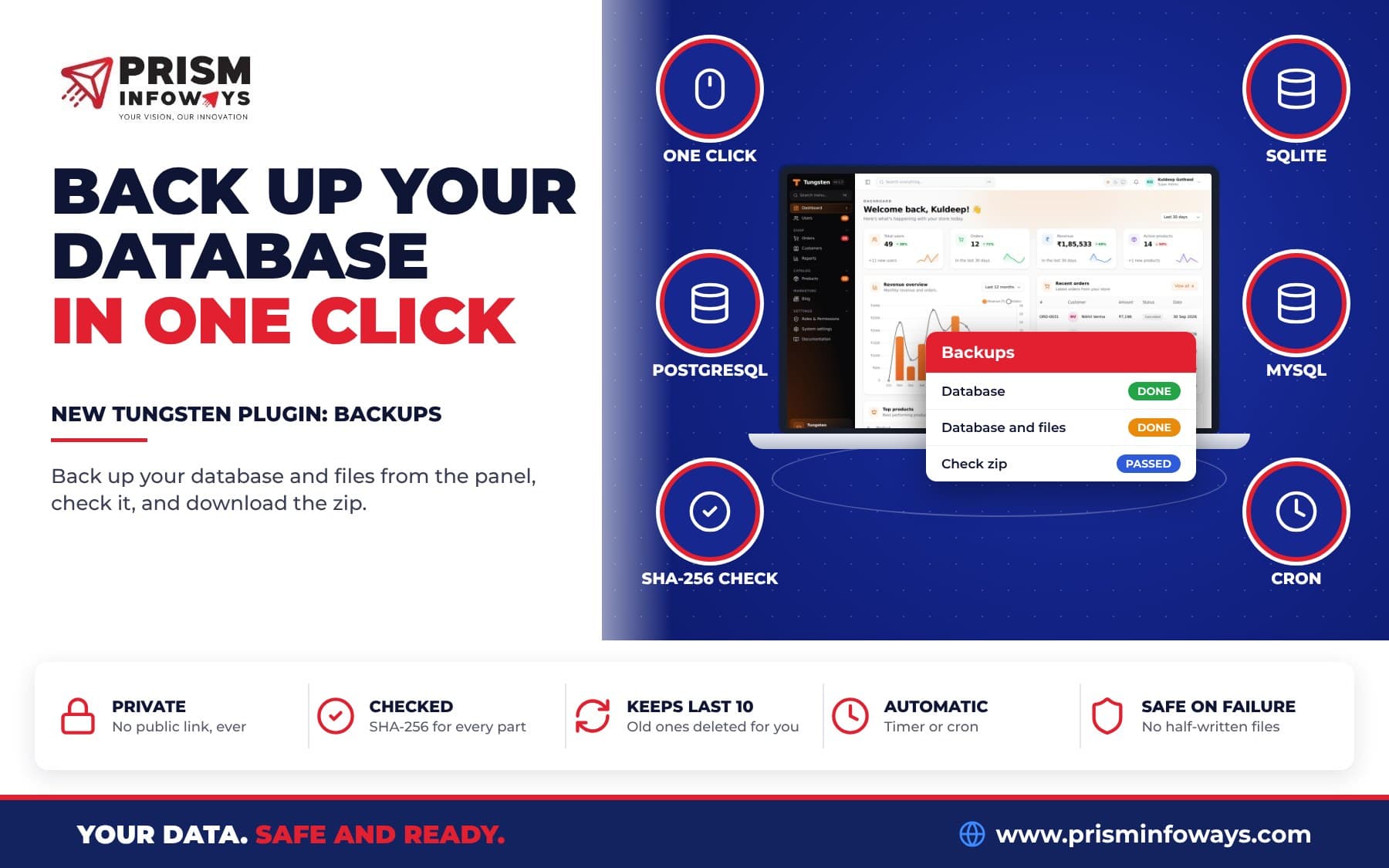
- Backups: a good habit before a big change on Live is to make a copy first. The Backups plugin does that with one button.
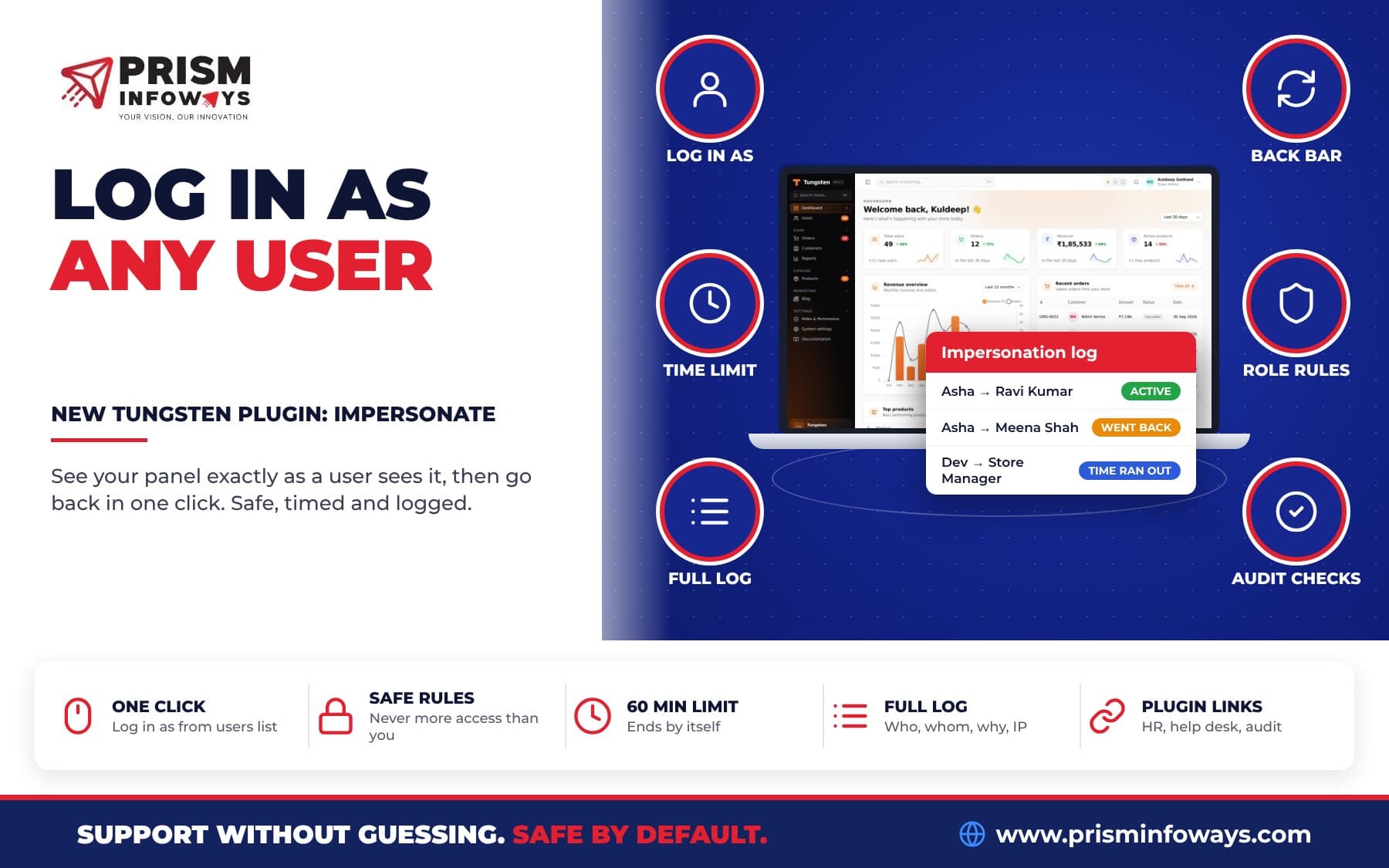
- Impersonate: when support staff sign in as another user to check a problem on Live, the red badge reminds them that every click is on real data. Read about the Impersonate user plugin, another safety plugin for your team.
Your own plugins can read the same environment with environment_of(panel, ctx) and show the same badge. The docs show how.
Environment indicator vs no indicator: what changes?
| Situation | Without the plugin | With tungsten-environment-indicator |
|---|---|---|
| Five tabs open, Local, Staging and Live | All tabs look the same | [Live], [Staging] in each tab title |
| Signing in | Same sign-in page everywhere | "You are signing in to Live" |
| Working on a page | No sign of where you are | Colored badge and colored line on top |
| Forgot to set the environment | Nothing tells you | Live everywhere except localhost (safe guess) |
| Live runs with debug mode on | Easy to miss | Badge says "debug on" |
| AI assistant on live data | Not told | Told it is Live, asked to confirm changes (with MCP) |
Tips and limits to know
- Restart after changing the setting. The environment and git branch are read once at start-up. If you change
APP_ENV, restart the app, or callplugin.refresh(). - Set the variable on every server. Set
APP_ENV=productionon live andAPP_ENV=stagingon staging. - It is a warning, not a lock. The badge tells people where they are. It does not stop anyone from changing data. Use roles and permissions for that.
- It is light. It adds no tables. If the badge ever fails to draw, the page still opens.
Key facts
- Package:
tungsten-environment-indicator(importtungsten_environment_indicator) - Version: 0.1.0
- Needs:
tungsten-admin0.1.4 or newer, Python 3.10 or newer - License: MIT, free and open source
- Reads:
TUNGSTEN_ENV,APP_ENV,ENVIRONMENT,ENV,FASTAPI_ENV,PYTHON_ENV - Database tables: none
Get started
Install it with pip install tungsten-environment-indicator, set APP_ENV and restart. Read the full environment indicator docs, see the plugin page, check what is new in the Tungsten changelog, or browse all Tungsten plugins. The code is on GitHub.
Want an admin panel with safe Local, Staging and Live setups made for your team? Talk to us if you want it built around your business.
More new Tungsten plugins
This plugin is part of a new batch of free Tungsten plugins. Each one installs with pip and works with the others:
- Quick Create: add any record from any page.
- Kanban boards: drag and drop records between columns.
- Custom dashboards: build your own dashboard with widgets.
- Calendar: meetings, leave and due dates in one view.
- Tags: colored tags and tag filters on any record.
- Saved views: one-click saved filters for every table.
- Media library: upload a file once and reuse it anywhere.
- Database backups: back up your database in one click.
- Impersonate: log in as a user to see what they see.
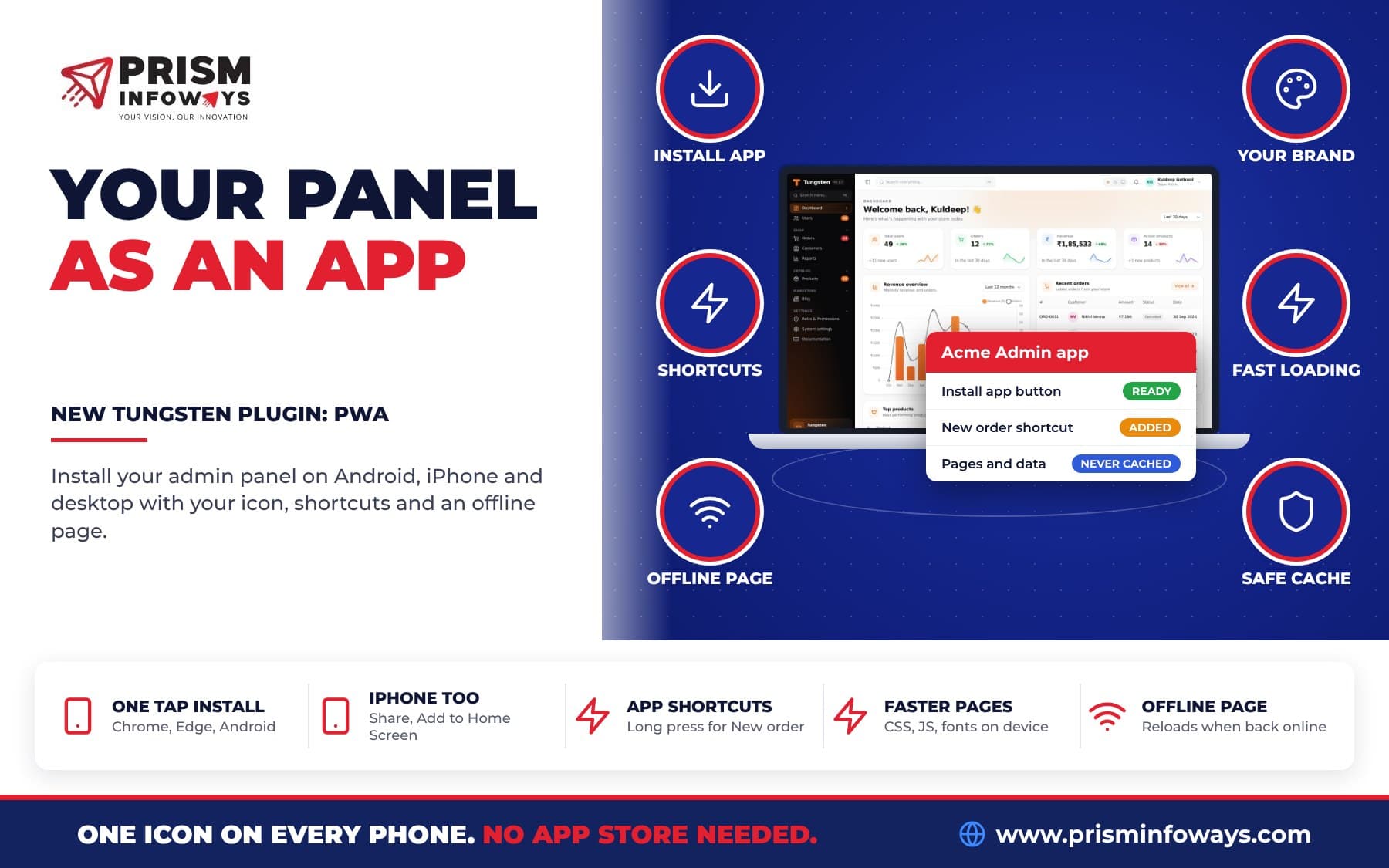
- Install as an app (PWA): put your admin panel on the phone home screen.
Frequently asked questions
How do I show a Live or Staging badge in a FastAPI admin panel?
Install tungsten-environment-indicator, add panel.plugin(EnvironmentIndicatorPlugin()) to your Tungsten panel, and start the app with APP_ENV=staging or APP_ENV=production. The badge shows in the top bar, on the sign-in page and in the tab title.
How does the Tungsten environment indicator know which environment I am in?
It reads TUNGSTEN_ENV, APP_ENV, ENVIRONMENT, ENV, FASTAPI_ENV or PYTHON_ENV, and the first one set wins. You can also pass the name in code. With none set, localhost is Local and every other address is Live.
Can I hide the Live badge from my customers?
Yes. Use hide_in=("production",) to show nothing on live, or visible= with a function to show the badge only to admins. Your team still sees it on Staging and Local.
Does the environment indicator slow down my admin panel?
No. It reads the environment once at start-up and adds a few hundred bytes of HTML to each page. It adds no database tables.
Does it tell AI assistants that they are on live data?
Yes. With the Tungsten MCP plugin installed, AI assistants are told the panel's environment. On Live they are told that changes affect real data and to confirm before changing or deleting anything.
Is tungsten-environment-indicator free?
Yes. It is free and open source under the MIT license. Version 0.1.0 needs tungsten-admin 0.1.4 or newer.
Need Expert IT Solutions?
Ready to transform your business? Team up with Prism Infoways and harness cutting-edge technology for your growth.
Contact Us